はじめに
こんにちは、AILabの安西晴哉です。
今回はPlaywrightを用いて、Webサイトのブラックボックステストを自動化してみました。
Webサービスの開発が進む現在、構築したサーバーの動作を外部から検証する「ブラックボックステスト」が重要となっています。ブラックボックステストは、システム内部の構造や実装を意識せず、あくまでユーザーの操作・入力を通じた挙動を確認する手法です。 しかし、これを手作業で実施する場合、時間と労力がかかるだけでなく、担当者によってテストの精度や結果にばらつきが生じるという課題があります。
そこで本記事では、Playwrightによるブラックボックステストの自動化を通じて、効率的かつ精度の高いテスト体制を実現する方法について、具体的な実装プロセスを交えながら解説します。
目次
開発環境
WordPress
WordPressはブログやWebサイトを簡単に作成・管理できるコンテンツ管理システムです。
今回は、ブラックボックステストの対象となるWebアプリケーションとして使用しました。
Docker
Dockerはコンテナ型仮想環境を構築・管理できるソフトウェアです。
今回は、WordPressの開発・テスト用環境を素早く立ち上げるために使用しました。
GitHub Actions
GitHub ActionsはGitHub上でCI/CD(自動テスト・自動デプロイ等)のワークフローを管理できるサービスです。
今回は、各種テスト(Playwright、k6など)や通知などを自動で実行するために使用しました。
Playwright
PlaywrightはMicrosoftが提供しているE2Eテスト(ブラウザ自動操作)が行えるフレームワークです。
今回は、WordPressの動作確認、UI操作テスト、UI変更チェックを行うために利用しました。
k6
k6はオープンソースの負荷テストツールです。
今回は、Webサーバへ負荷をかけ、同時アクセスや応答速度の計測などパフォーマンス検証のために用いました。
環境構築
開発はTypeScriptで行いました。
GitHub Actionsを使用すると、指定したブランチへのpush時やGitHubのUI上でのRun workflow押下時にtestsフォルダ内のスクリプトが順に実行されますが、ローカルで実行する場合は以下の手順で行います。
メイン処理と開発フロー
開発は以下のステップで進めました。
フォルダ構造
本プロジェクトは以下のフォルダ構造で行いました。
wp-e2e-playwright
├── .github/
│   └── workflows/
│       ├── k6.yml
│       └── playwright.yml
│
├── archive-results/
│   ├── create-user-test-chromium/
│   ├── create-user-test-firefox/
│   ├── create-user-test-webkit/
│   ├── login-test-chromium/
│   ├── login-test-firefox/
│   ├── login-test-webkit/
│   ├── post-test-chromium/
│   ├── post-test-firefox/
│   ├── post-test-webkit/
│   ├── search-post-test-chromium/
│   ├── search-post-test-firefox/
│   └── search-post-test-webkit/
│
├── playwright-report/
│   ├── data/
│   ├── index.html
│   └── report_<date>.json
│
├── scripts/
├── test-results/
├── tests/
│   ├── create-user.spec.ts
│   ├── login.spec.ts
│   ├── post.spec.ts
│   └── search-post.spec.ts
│
├── .gitignore
├── docker-compose.yml
├── package-lock.json
├── package.json
├── playwright.config.ts
└── README.md
①WordPressをローカルで構築し、アカウントの作成を行う
Dockerを用いてWordPressをローカルで構築しました。
docker-compose.yml
services:
  ########################
  #### WordPress
  ########################
  db:
    image: mysql:8.0
    container_name: mysql8
    restart: always
    environment:
      MYSQL_ROOT_PASSWORD: password
      MYSQL_DATABASE: db_local
      MYSQL_USER: wp_user
      MYSQL_PASSWORD: password

  WordPress:
    image: wordpress:latest
    container_name: wordpress
    restart: always
    depends_on:
      - db
    ports:
      - 80:80
    environment:
      WORDPRESS_DB_HOST: db:3306
      WORDPRESS_DB_USER: wp_user
      WORDPRESS_DB_PASSWORD: password
      WORDPRESS_DB_NAME: db_local
      WORDPRESS_DEBUG: 1
    volumes:
      - ./html:/var/www/html

  phpmyadmin:
    image: phpmyadmin/phpmyadmin:latest
    container_name: phpmyadmin_ingrid
    restart: always
    depends_on:
      - db
    ports:
      - 10099:80
docker-compose.ymlを作成したのち起動を行います。
docker-compose up -d
起動後、http://localhostを開くことで、WordPressを開くことができます。
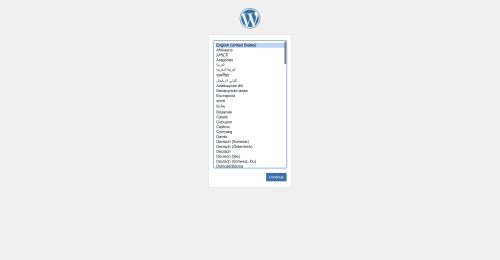
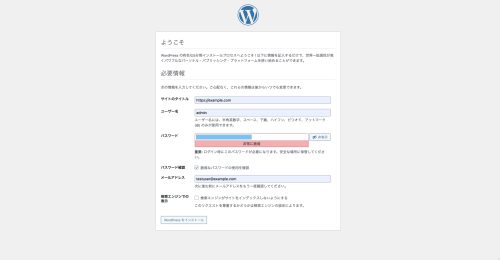
WordPressの初回起動後は自身のユーザー登録を行います。 今回は画像のように設定を行いました。
② Playwrightを用いてテストケースを作成
実際にブラックボックステストを行いたいケースを作成したWordPressとplaywrightを用いて作成しました。
これにより、様々なテストケースを自動で実行できます。
今回作成したテストケース
- ログイン(login_spec.ts)
- ユーザー作成(create-user.spec.ts)
- 投稿(post.spec.ts)
- 編集(search-post.spec.ts)
login_spec.ts
import { test, expect } from '@playwright/test';
import path from 'node:path';
import fs from 'node:fs';
import { compareArchiveAndTestDirs } from '../scripts/playwright/evaluation';

const archiveBaseDir = './archive-results';

test('test', async ({ page }, testInfo) => {
  const testFile = path.basename(testInfo.file);
  const testFileName = testFile.replace(/\.spec\.ts$/, '');
  const browserName = testInfo.project.name;
  const testName = testInfo.title.replace(/\s+/g, '_');
  const timestamp = new Date().toISOString().replace(/[:.]/g, '-');
  const dirPath = `./test-results/${testFileName}-${testName}-${browserName}`;
  const filePath = path.join(dirPath, `${timestamp}.png`);
  const archiveDir = path.join(archiveBaseDir, `${testFileName}-${testName}-${browserName}`);

  await page.goto('http://localhost/wp-login.php/');
  const usernameInput = page.getByRole('textbox', { name: 'ユーザー名またはメールアドレス' });
  const passwordInput = page.getByRole('textbox', { name: 'パスワード' });
  const loginButton = page.getByRole('button', { name: 'ログイン' });
  await expect(usernameInput).toBeVisible();
  await expect(passwordInput).toBeVisible();
  await usernameInput.fill('admin');
  await passwordInput.click();
  await passwordInput.fill('パスワードを入力');
  await expect(loginButton).toBeEnabled({ timeout: 5000 });
  await expect(loginButton).toBeVisible({ timeout: 5000 });
  await loginButton.click();

  await page.waitForTimeout(2000);
  await page.waitForTimeout(1000);

  await page.screenshot({ path: filePath, fullPage: true });

  fs.mkdirSync(archiveDir, { recursive: true });

});
create-user.spec.ts
import { test, expect } from '@playwright/test';
import path from 'node:path';
import fs from 'node:fs';
import { compareArchiveAndTestDirs } from '../scripts/playwright/evaluation';

const archiveBaseDir = './archive-results';

test('test', async ({ page }, testInfo) => {
  const testFile = path.basename(testInfo.file);
  const testFileName = testFile.replace(/\.spec\.ts$/, '');
  const browserName = testInfo.project.name;
  const testName = testInfo.title.replace(/\s+/g, '_');
  const timestamp = new Date().toISOString().replace(/[:.]/g, '-');
  const dirPath = `./test-results/${testFileName}-${testName}-${browserName}`;
  const filePath = path.join(dirPath, `${timestamp}.png`);
  const archiveDir = path.join(archiveBaseDir, `${testFileName}-${testName}-${browserName}`);

  await page.goto('http://localhost/wp-login.php/');
  const usernameInput = page.getByRole('textbox', { name: 'ユーザー名またはメールアドレス' });
  const passwordInput = page.getByRole('textbox', { name: 'パスワード' });
  const loginButton = page.getByRole('button', { name: 'ログイン' });
  await expect(usernameInput).toBeVisible();
  await expect(passwordInput).toBeVisible();
  await usernameInput.fill('admin');
  await passwordInput.click();
  await passwordInput.fill('パスワードを入力');
  await expect(loginButton).toBeEnabled({ timeout: 5000 });
  await expect(loginButton).toBeVisible({ timeout: 5000 });
  await loginButton.click();

  await page.getByRole('link', { name: 'ユーザー', exact: true }).click();
  await page.locator('#wpbody-content').getByRole('link', { name: 'ユーザーを追加' }).click();
  await page.getByRole('textbox', { name: 'ユーザー名 (必須)' }).fill('testuser');
  await page.getByRole('textbox', { name: 'メール (必須)' }).fill('testuser@example.com');
  await page.getByRole('textbox', { name: '名', exact: true }).fill('firstname');
  await page.getByRole('textbox', { name: '姓' }).fill('familyname');
  await page.getByRole('textbox', { name: 'サイト' }).fill('https://example.com');
  await page.getByLabel('言語').selectOption('ja');
  await page.getByRole('textbox', { name: 'パスワード' }).press('ControlOrMeta+a');
  await page.getByRole('textbox', { name: 'パスワード' }).fill('password');
  await page.getByRole('checkbox', { name: '脆弱なパスワードの使用を確認' }).check();
  await page.getByRole('checkbox', { name: '新規ユーザーにアカウントに関するメールを送信します' }).uncheck();
  await page.getByLabel('権限グループ').selectOption('author');
  await page.getByRole('button', { name: 'ユーザーを追加' }).click();

  await page.waitForTimeout(2000);
  await page.waitForTimeout(1000);

  await page.screenshot({ path: filePath, fullPage: true });

  fs.mkdirSync(archiveDir, { recursive: true });

});
post.spec.ts
import { test, expect } from '@playwright/test';
import path from 'node:path';
import fs from 'node:fs';
import { compareArchiveAndTestDirs } from '../scripts/playwright/evaluation';

const archiveBaseDir = './archive-results';

test('test', async ({ page }, testInfo) => {
  const testFile = path.basename(testInfo.file);
  const testFileName = testFile.replace(/\.spec\.ts$/, '');
  const browserName = testInfo.project.name;
  const testName = testInfo.title.replace(/\s+/g, '_');
  const timestamp = new Date().toISOString().replace(/[:.]/g, '-');
  const dirPath = `./test-results/${testFileName}-${testName}-${browserName}`;
  const filePath = path.join(dirPath, `${timestamp}.png`);
  const archiveDir = path.join(archiveBaseDir, `${testFileName}-${testName}-${browserName}`);

  await page.goto('http://localhost/wp-login.php/');
  const usernameInput = page.getByRole('textbox', { name: 'ユーザー名またはメールアドレス' });
  const passwordInput = page.getByRole('textbox', { name: 'パスワード' });
  const loginButton = page.getByRole('button', { name: 'ログイン' });
  await expect(usernameInput).toBeVisible();
  await expect(passwordInput).toBeVisible();
  await usernameInput.fill('admin');
  await passwordInput.click();
  await passwordInput.fill('パスワードを入力');
  await expect(loginButton).toBeEnabled({ timeout: 5000 });
  await expect(loginButton).toBeVisible({ timeout: 5000 });
  await loginButton.click();

  await page.getByRole('link', { name: '投稿', exact: true }).click();

  await page.waitForTimeout(2000);
  await page.waitForTimeout(1000);

  await page.screenshot({ path: filePath, fullPage: true });

  fs.mkdirSync(archiveDir, { recursive: true });

});
search-post.spec.ts
import { test, expect } from '@playwright/test';
import path from 'node:path';
import fs from 'node:fs';
import { compareArchiveAndTestDirs } from '../scripts/playwright/evaluation';

const archiveBaseDir = './archive-results';

test('test', async ({ page }, testInfo) => {
  const testFile = path.basename(testInfo.file);
  const testFileName = testFile.replace(/\.spec\.ts$/, '');
  const browserName = testInfo.project.name;
  const testName = testInfo.title.replace(/\s+/g, '_');
  const timestamp = new Date().toISOString().replace(/[:.]/g, '-');
  const dirPath = `./test-results/${testFileName}-${testName}-${browserName}`;
  const filePath = path.join(dirPath, `${timestamp}.png`);
  const archiveDir = path.join(archiveBaseDir, `${testFileName}-${testName}-${browserName}`);

  await page.goto('http://localhost/wp-login.php/');
  const usernameInput = page.getByRole('textbox', { name: 'ユーザー名またはメールアドレス' });
  const passwordInput = page.getByRole('textbox', { name: 'パスワード' });
  const loginButton = page.getByRole('button', { name: 'ログイン' });
  await expect(usernameInput).toBeVisible();
  await expect(passwordInput).toBeVisible();
  await usernameInput.fill('admin');
  await passwordInput.click();
  await passwordInput.fill('パスワードを入力');
  await expect(loginButton).toBeEnabled({ timeout: 5000 });
  await expect(loginButton).toBeVisible({ timeout: 5000 });
  await loginButton.click();

  await page.getByRole('link', { name: '投稿', exact: true }).click();
  await page.getByRole('link', { name: '「Hello world!」 (編集)' }).click();

  await page.waitForTimeout(2000);
  await page.waitForTimeout(1000);

  await page.screenshot({ path: filePath, fullPage: true });

  fs.mkdirSync(archiveDir, { recursive: true });

});
注意点
従来は、ページ遷移直後やフォーム描画中に入力操作を行うと、まだ入力欄が完全に読み込まれていないことによって、値が正しく入力されない、テストの誤失敗が発生することがありました。 そこで、このように一度要素が確実に読み込まれてから入力をすることで、読み込み前に入力をしてしまう操作を防ぎました。
  const usernameInput = page.getByRole('textbox', { name: 'ユーザー名またはメールアドレス' });
  const passwordInput = page.getByRole('textbox', { name: 'パスワード' });
  const loginButton = page.getByRole('button', { name: 'ログイン' });
  await expect(usernameInput).toBeVisible();
  await expect(passwordInput).toBeVisible();
③ Playwrightの結果出力
Playwright.config.tsのreporterに追加を行うことで、実行結果をhtmlで確認することができます。
  reporter:[
    ['line'],
    ['html', { open: 'never' }],
    ['json', { outputFile: path.resolve(__dirname, `playwright-report`, `report_${datetime}.json`) }],
  ],
playwright.config.ts
import path from 'node:path';
import { defineConfig, devices } from '@playwright/test';

/**
 * Read environment variables from file.
 * https://github.com/motdotla/dotenv
 */
// import dotenv from 'dotenv';
// import path from 'path';
// dotenv.config({ path: path.resolve(__dirname, '.env') });

const now = new Date();
const pad = (n: number) => n.toString().padStart(2, '0');
const datetime = [
  now.getFullYear(),
  pad(now.getMonth() + 1),
  pad(now.getDate()),
  '_',
  pad(now.getHours()),
  pad(now.getMinutes()),
  pad(now.getSeconds())
].join('');

/**
 * See https://playwright.dev/docs/test-configuration.
 */
export default defineConfig({
  testDir: './tests',
  /* Run tests in files in parallel */
  fullyParallel: true,
  /* Fail the build on CI if you accidentally left test.only in the source code. */
  forbidOnly: !!process.env.CI,
  /* Retry on CI only */
  retries: process.env.CI ? 2 : 0,
  /* Opt out of parallel tests on CI. */
  workers: process.env.CI ? 1 : undefined,
  /* Reporter to use. See https://playwright.dev/docs/test-reporters */
  reporter:[
    ['line'],
    ['html', { open: 'never' }],
    ['json', { outputFile: path.resolve(__dirname, `playwright-report`, `report_${datetime}.json`) }],
  ],
  /* Shared settings for all the projects below. See https://playwright.dev/docs/api/class-testoptions. */
  use: {
    /* Base URL to use in actions like `await page.goto('')`. */
    // baseURL: 'http://localhost:3000',

    /* Collect trace when retrying the failed test. See https://playwright.dev/docs/trace-viewer */
    trace: 'on-first-retry',

    screenshot: "off",
    video: 'on',
  },

  /* Configure projects for major browsers */
  projects: [
    {
      name: 'chromium',
      use: { ...devices['Desktop Chrome'] },
    },

    {
      name: 'firefox',
      use: { ...devices['Desktop Firefox'] },
    },

    {
      name: 'webkit',
      use: { ...devices['Desktop Safari'] },
    },

    /* Test against mobile viewports. */
    // {
    //   name: 'Mobile Chrome',
    //   use: { ...devices['Pixel 5'] },
    // },
    // {
    //   name: 'Mobile Safari',
    //   use: { ...devices['iPhone 12'] },
    // },

    /* Test against branded browsers. */
    // {
    //   name: 'Microsoft Edge',
    //   use: { ...devices['Desktop Edge'], channel: 'msedge' },
    // },
    // {
    //   name: 'Google Chrome',
    //   use: { ...devices['Desktop Chrome'], channel: 'chrome' },
    // },
  ],

  /* Run your local dev server before starting the tests */
  // webServer: {
  //   command: 'npm run start',
  //   url: 'http://localhost:3000',
  //   reuseExistingServer: !process.env.CI,
  // },
});
⑤ GitHub Actionsの実行
playwright.ymlでは、GitHub Actionsによりコードを自動で実行し、自動でUIの更新を確認します。
playwright.yml
on:
  push:
    branches: [ ブランチ名 ]
  pull_request:
    branches: [ ブランチ名 ]
  workflow_dispatch:
  repository_dispatch:
    types: [test]

jobs:
  test:
    timeout-minutes: 60
    runs-on: ubuntu-latest

    steps:
      - uses: actions/checkout@v4
      - uses: actions/setup-node@v4
        with:
          node-version: lts/*
      - name: Install dependencies
        run: npm ci
      - name: Run Playwright
        run: npx playwright test
      - uses: actions/upload-artifact@v4
        if: ${{ !cancelled() }}
        with:
          name: playwright-report
          path: playwright-report/
          retention-days: 30
⑥ パフォーマンス測定
ページ変更などをきっかけにサイトのパフォーマンスが下がった際に原因(時間帯によるものか、変更が原因か)を特定できるようにしました。
k6.ymlをGitHub Actionsで定期実行し、k6-test.tsで負荷チェックを行います。 k6-test.ts内のoptionsを変えることで様々な負荷を与え、テストすることができます。
k6.yml
name: k6 Basic Load Test
on:
  workflow_dispatch:
  schedule:
    - cron: "*/5 * * * *"

jobs:
  k6test:
    name: Run k6 load test
    runs-on: ubuntu-latest

    services:
      nginx:
        image: nginx:latest
        ports:
          - "80:80"

    steps:
      - name: Checkout
        uses: actions/checkout@v2
      - name: curl nginx
        run: curl http://localhost:80
      - name: Install k6
        run: |
          curl https://github.com/grafana/k6/releases/download/v0.42.0/k6-v0.42.0-linux-amd64.tar.gz -L | tar xvz --strip-components 1
      - name: Run k6 load test
        run: |
          ./k6 run ./scripts/k6-test.ts
k6-test.ts
import http from 'k6/http';
import { check, sleep } from 'k6';

export const options = {
  stages: [
    { duration: '10s', target: 5 },
    { duration: '30s', target: 5 },
    { duration: '10s', target: 0 },
  ],
};

export default function () {
  const res = http.get('http://localhost:80');
  check(res, { 'status is 200': (r) => r.status === 200 });
  sleep(1);
}
スクリプトの実行
実際の動作では、GitHub Actionsにより自動実行されますが、直接実行させる際は以下のように実行する。
# テストファイルを指定して実行
npx playwright test tests/login.spec.ts

# testフォルダ内の全てのテストケースを順に実行
npx playwright test

# ブラウザを開いて実行状況を可視化した状態で実行
npx playwright test --headed

# PlaywrightのHTMLレポートを表示
npx playwright show-report
実行結果
テスト動画(search-post.spec.ts)
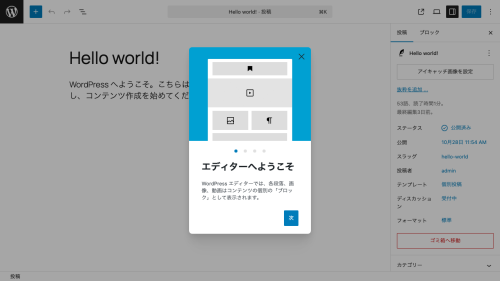
スナップショット
今後の展望
今回は、Playwrightを用いてWebサイトのブラックボックステストの自動化を行いました。
時点ではテスト項目が少なく、網羅性に課題が残っています。 今後は、より多様なパターンや画面操作に対応できるようテストコードを追加し、差分検知後の確認・レビュー体制も強化していきたいです。 さらに、誰でも使いやすく効率的に自動テストを運用できるように設定や実装方法の見直しを進め、システム全体の利便性向上にも挑戦していきます。